
Importing Files
Maybe you’ve started your project in another app or received a file from a teammate, you can easily continue working on it by importing it intoMindNode Next. Here’s how:
How to Import on macOS
There are several ways to open a compatible document in MindNode Next. You can right-click the file and chooseOpen With > MindNode Next from the context menu, or simply drag the file onto the MindNode icon in your Dock.
On iOS
To import a document, long-press the file, then selectShare > MindNode Next.
If MindNode Next doesn’t appear among the suggested apps, tap theMore button (three dots in a rounded square) to see the full list and select it there.
Once you’ve imported a document on one device, it will automatically be available in MindNode Next on all other devices linked to your iCloud account.
Supported Formats
MindNode Next currently supports importingMindNode Next, MindNode Classic (package and SFF), Plain Text, Rich Text, Microsoft Word (only macOS), Markdown, TextBundle, FreeMind, iThoughts, OPML, Xmind
Exporting Files
Sometimes, MindNode Next isn’t the final destination for your ideas. You may want to share or continue working on them in another format. MindNode offers several export options to make this easy. You can export your document asMindNode Next, MindNode Classic, PDF, SVG, FreeMind, OPML, Image, Markdown, or Text.
How to Export on macOS
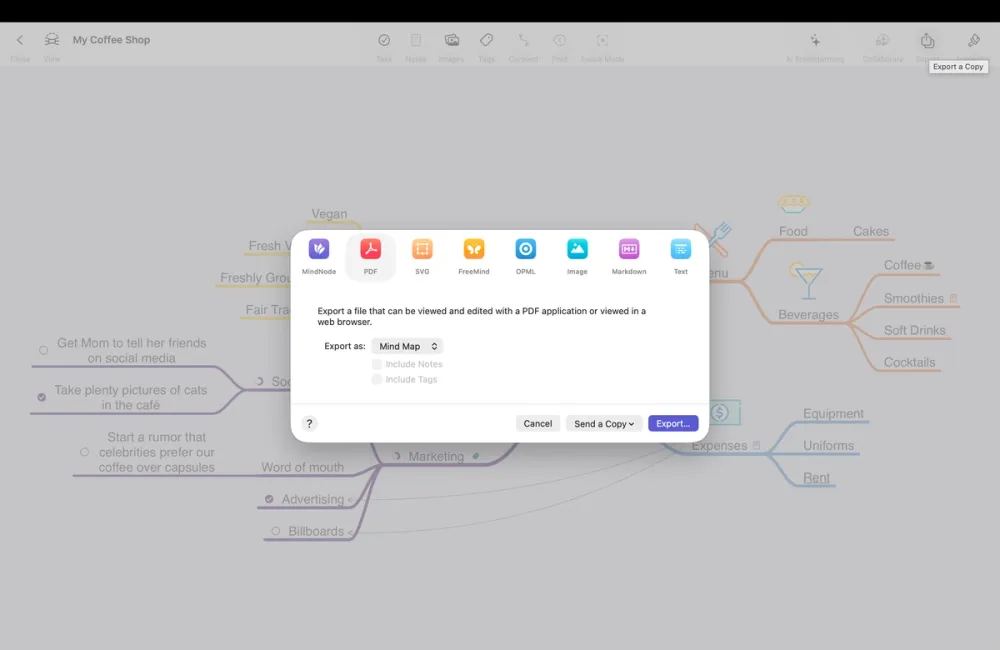
- Open your document and go to the Export button at the top of your screen.
- Choose your preferred file format.
- In the export window, adjust any settings as needed.
- Click Export…, then choose where you want to save your file.
- You can also use the Send a Copy button to share your document directly via Mail, Messages, or AirDrop.
How to Export on iPhone
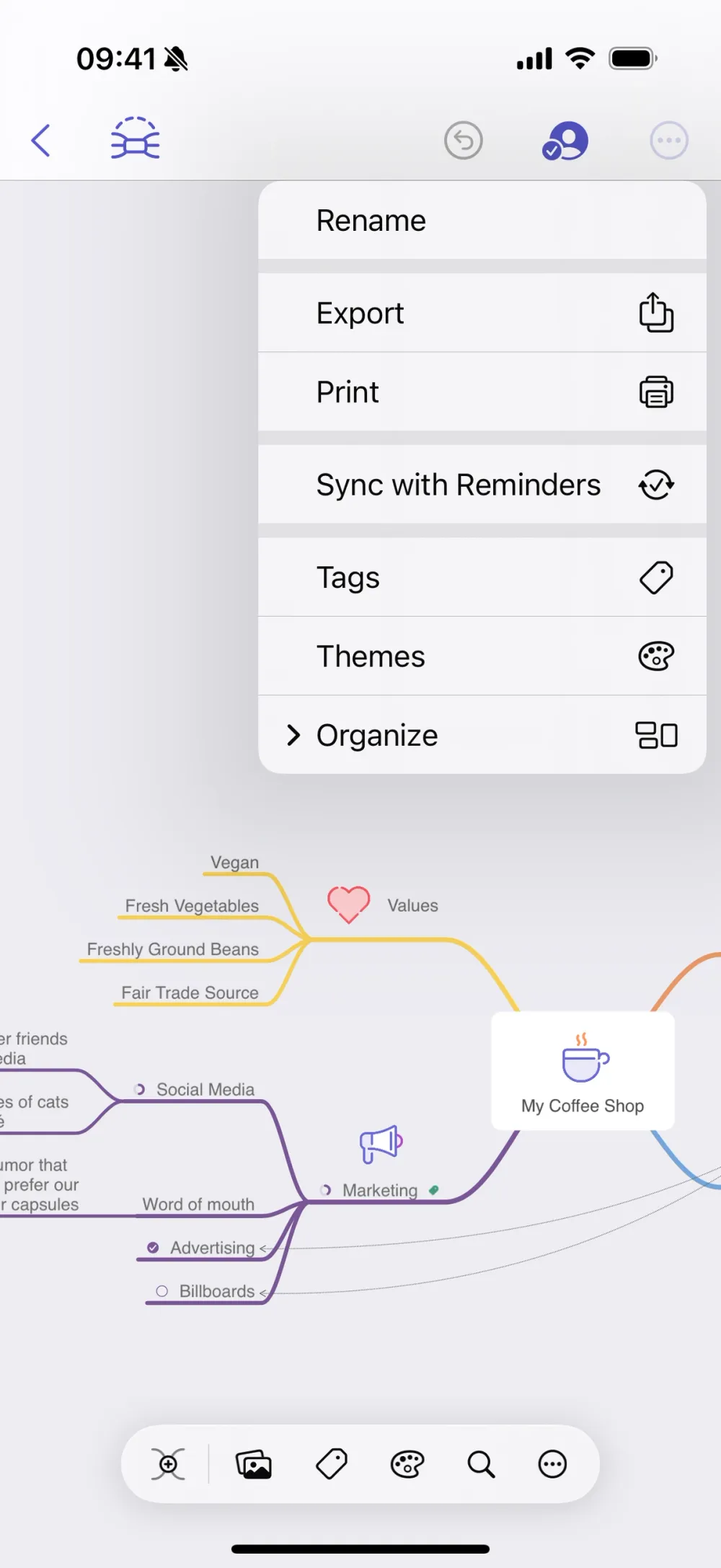
- Tap the action button (the circle with three dots) in the toolbar.
- From the drop-down menu, select Export.
- Choose the file format you’d like to export to and adjust your settings.
- Tap Export, then select how to share your document (e.g., AirDrop, Messages) or where to save it.
How to Export on iPad
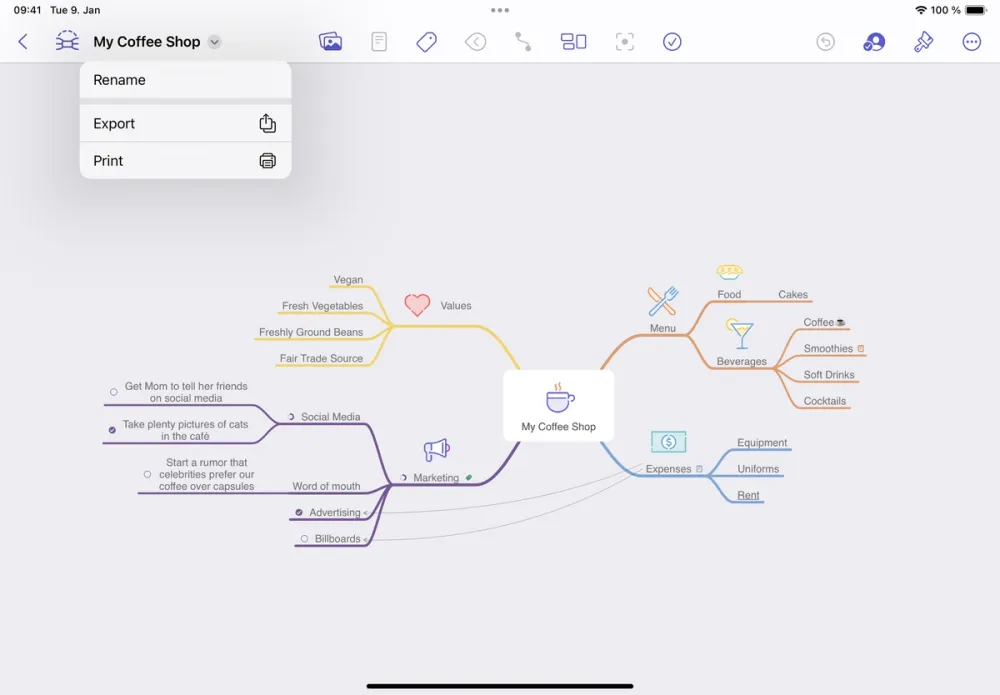
- Tap the document name at the top of the screen.
- From the drop-down menu, select Export.
- Choose the desired format and adjust your settings.
- Tap Export, then choose the app or location to share or save your file.
Available Export Formats
MindNode Classic
Export your MindNode Next document as a single-file MindNode Classic document for use on older devices or legacy versions of MindNode.
Note: Not all MindNode Classic features are supported.
If MindNode Next doesn’t support a format you need, you can first export to MindNode Classic and then use that version to export into your desired format.
Export your Mind Map or Outline as a PDF.
For outlines, you can choose to include Notes and/or Tags.
SVG
Exporting to SVG allows you to open and edit your document in vector-based apps or directly in a web browser.
Image
Export your Mind Map as a PNG image.
You can choose whether to include a background or make it transparent.
Markdown
Export your document in Markdown format, compatible with most text editors and Markdown-supported apps.
You can also choose whether to include images in a TextBundle.
Text
Export as a plain text outline, rich text or TaskPaper that can be viewed and edited in any text editor.