
Using the Model Context Protocol (MCP) you can connect compatible AI assistants to MindNode. Once connected, you can ask them to find information in your documents, organize your library, and create or update content directly from a conversation.
What is MCP?
MCP stands for Model Context Protocol. It is an open standard that allows AI assistants to connect to apps and use the tools and information they make available. With MCP enabled, compatible AI assistants can work with your MindNode documents based on the level of access you choose.
What can I do with MCP?
By default, AI assistants can only read data in MindNode. You can optionally allow them to make changes as well. Here are some things you can ask:
Read Data
- Give me a list of all documents I updated recently in MindNode.
- Suggest a new folder structure for all my MindNode documents. It should be no more than three levels deep.
Manipulate Data
- Move all MindNode documents with “Team Meeting” in the name, to a new “Team Meetings” folder.
- Restyle the "Café Opening" mind map in MindNode. Give it a colorful style that fits the topic and add emojis to important nodes.
- In MindNode, translate all documents in the “Sample Documents” folder into German.
- Create a new MindNode document with a basic plan for a family trip to Stockholm.
Enable MCP in MindNode
- Open MindNode on your Mac.
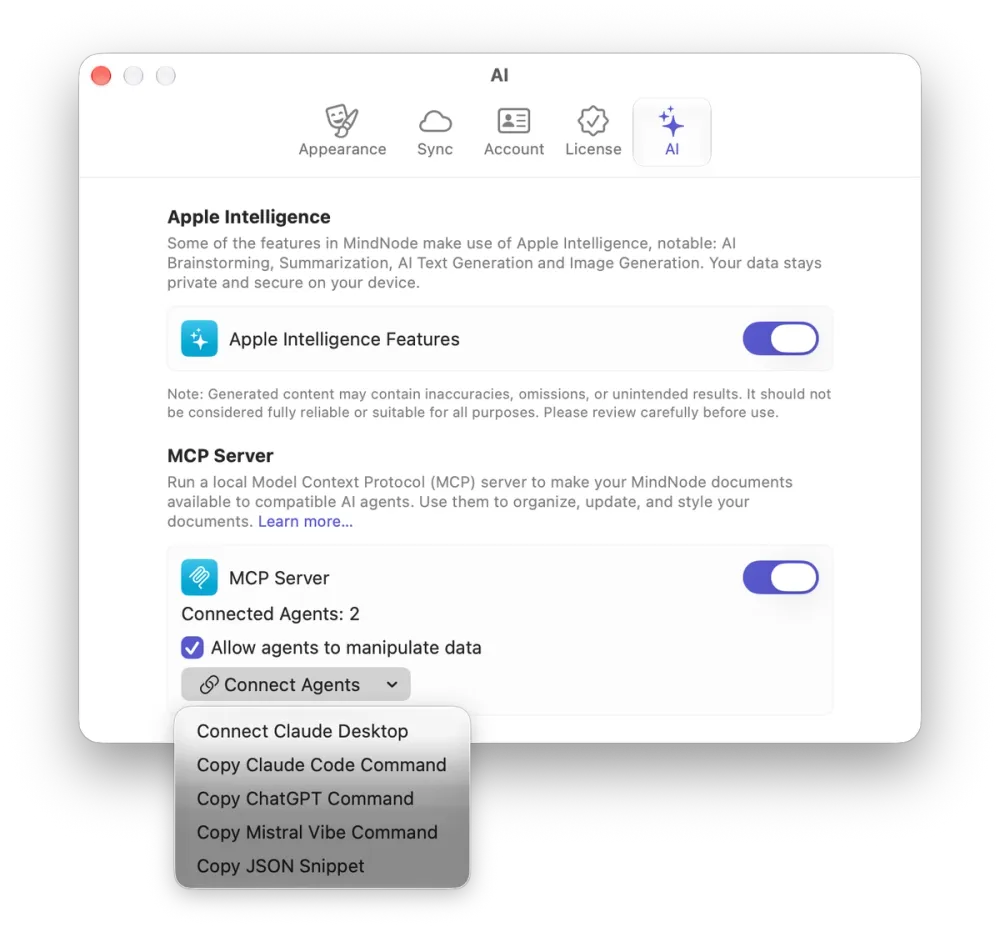
- Choose MindNode > Settings from the menu bar and select AI.
- Enable MCP Server.
- Optionally: By default agents can only read data. You can enable “Allow agents to manipulate data” if they should also be able to edit data.
MCP is currently only available in MindNode for Mac and requires an AI assistant that supports local MCP servers using stdio.
The connection between MindNode and the AI assistant runs locally on your Mac. Information accessed by the assistant may still be sent to its provider for processing.
Connect an AI Assistant
The MCP server runs locally on your Mac and communicates using stdio. In MindNode Settings, click Connect Agents and choose the AI assistant you want to use.
Claude Desktop
For Claude Desktop, select Connect Claude Desktop. MindNode will automatically configure the connection.
Claude Code, ChatGPT for Mac, Codex, and Mistral Vibe
For these apps, select the corresponding Copy … Command button and paste the command into the app’s prompt field. The assistant will configure the connection for you.
Other Agents
For other compatible AI assistants, select Copy JSON Snippet and use it as a starting point for configuration. The assistant must support local MCP servers using stdio.