
Your Data in MindNode
Your data belongs to you and you alone. At no time is our company able to see or decrypt your data. We wrote a dedicated article on how MindNode stores your data.
Backup Documents
You can create quick backups directly in MindNode, use Shortcuts to automate them, or backup the database directly.
Quick Backup
In MindNode's Settings under Sync locate the Manage Your Data section and choose Take Out Data. This will allow you to export all documents as MindNode Classic documents.
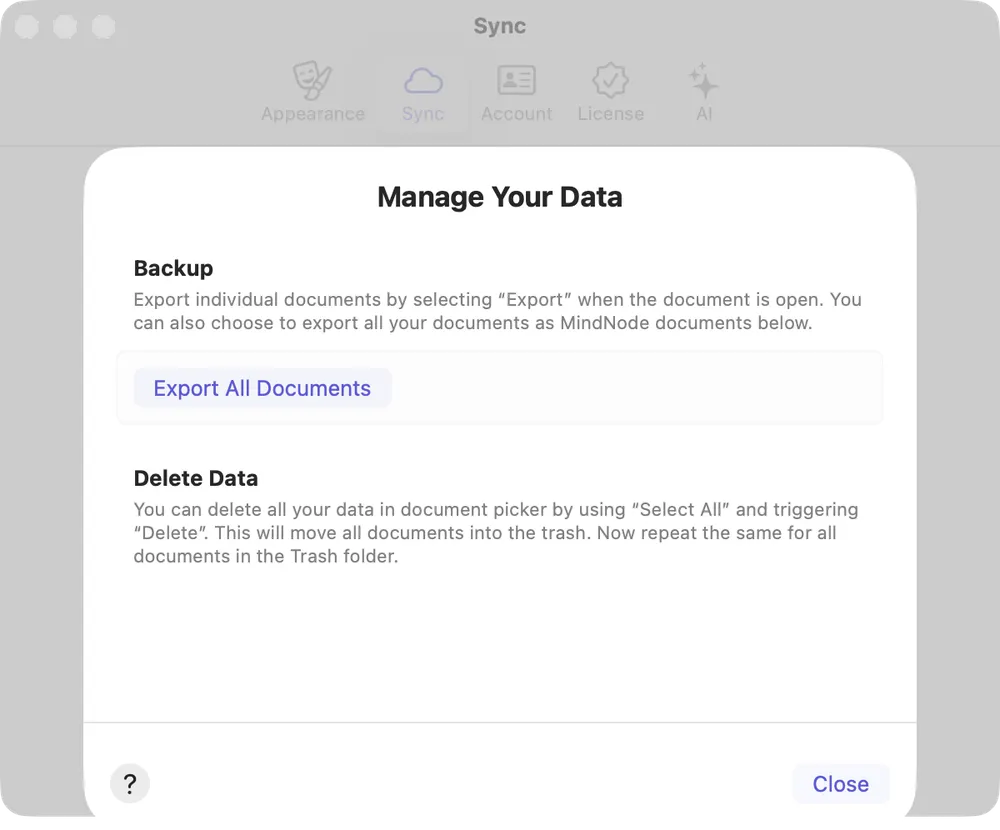
Backup using Shortcuts
MindNode comes with a wide variety of Shortcuts. You can create a shortcut to export all your documents with just two actions.
- Create a new Shortcut
- Add the "Find Documents" action
- Add a "Repeat with Each" action
- Add the "Export Document" action between Repeat and End Repeat
- Add a "Save File" action
You can run this action to export all your documents and can even change the default export type.
Database Backups
All documents are stored in a local database. When you don't sync your data using CloudKit it might be necessary to manually backup this database when switching to a new device or deleting the app.
On your Mac: Hold the Option Key and with the key pressed choose Help > Support Tools… from the main menu. This will open a new view in MindNode's Settings. On this view choose "Reveal Local Storage". Close MindNode Next and backup the entire "CloudDocuments" folder.
On your iPhone, iPad or Apple Vision Pro: In MindNode, navigate to Settings. Scroll down to the bottom and press on the version information in the footer. After a second a new entry called "Support Tools" will appear under "Show Onboarding". Select it and choose "Reveal Local Storage". Close MindNode Next and backup the entire "CloudDocuments" folder.
Delete Documents
Your documents are never stored with us. Documents are stored locally or on CloudKit. To delete them:
- Select All documents (CMD-A)
- Delete all selected document (Backspace)
- Empty the trash to permanently delete them (Select all documents again and choose Delete)
Once you emptied the trash, there is no way to recover deleted documents! By design, your data is not stored with us and we have no backups.
Wipe All Data
To completely wipe all MindNode data, first delete all data from iCloud before also deleting all local data by deleting the app. Those steps will delete all your documents, but won't delete your MindNode Account.
- In Settings app go to (Your Name) > iCloud > Storage > Manage… > MindNode Next and choose Delete Data from iCloud
- Delete the "CloudDocuments" folder. See section "Database Backups" (above) on instructions how to access this folder.
- Optional: Reboot the device to ensure all caches are cleared by the system.