
Use MindNode together with Apple Shortcuts to create powerful shortcuts that combine MindNode with other apps. You can create shortcuts that work with documents, nodes and tags.
Sample Shortcuts
To help you get started we created a wide selection of sample shortcuts you can directly download. You can find them on our dedicated Shortcuts page.
Shortcut Actions
MindNode's Shortcut actions can be grouped in three categories. Actions that operate on a document, node or tag
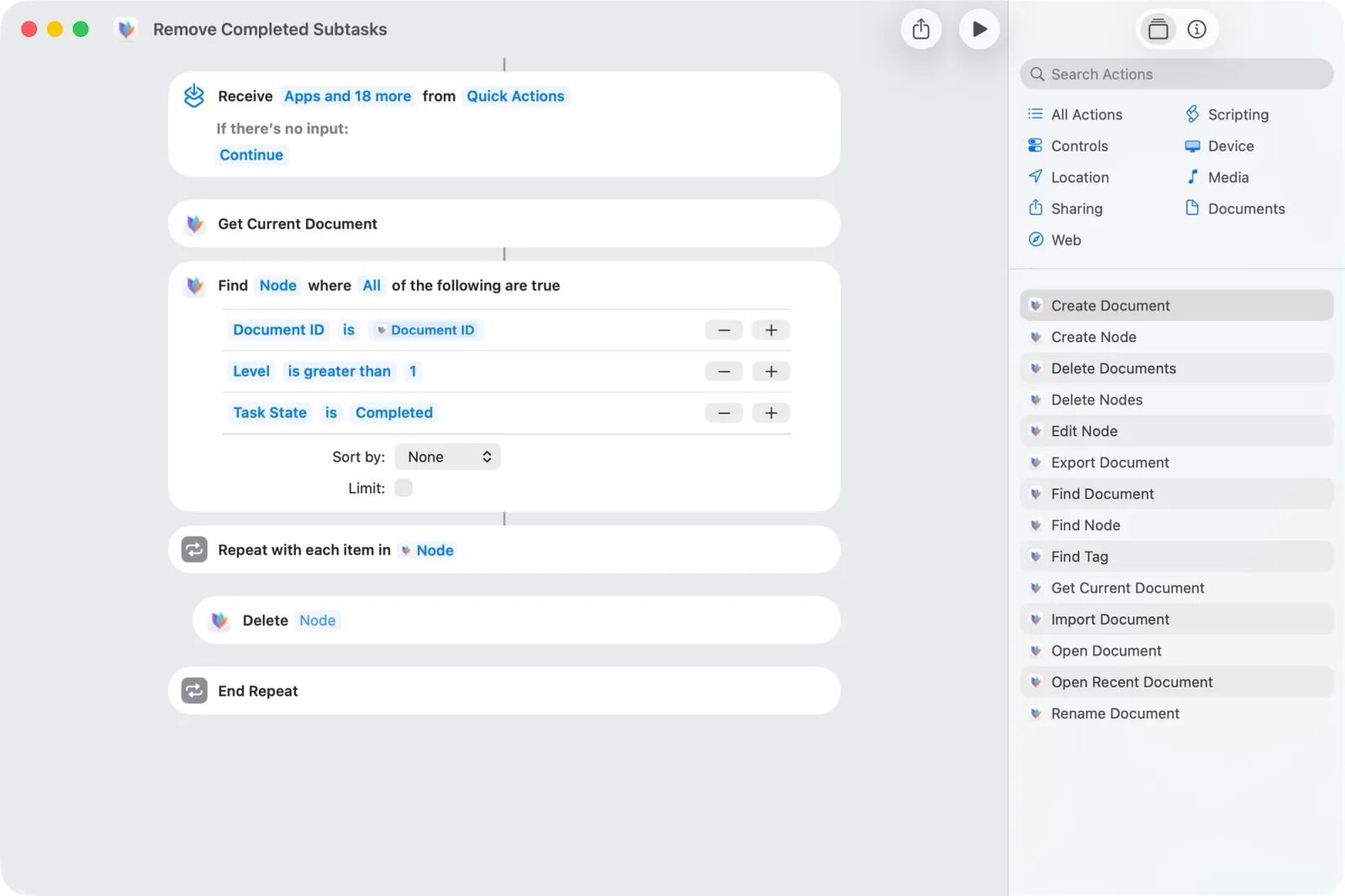
Document Actions
Document Actions are actions that operate on a document itself and not its content. You can use it to create, delete and export documents.
- Create Document: Creates a new document with the given title.
- Delete Documents: Deletes the specified document(s) from your library.
- Export Document: Exports the specified document to the selected format.
- Find Documents: Finds documents matching the given filters, such as title, modification date, or folder name.
- Get Current Document: Returns the document currently viewed in the app if it's running.
- Import Document: Imports a file into the app. Supports formats such as MindNode Classic, RTF, plain text, TextBundle, FreeMind, Xmind, OPML, and iThoughts X.
- Open Document: Opens the specified document in the app.
- Open Recent Document: Opens the most recently accessed document in the app.
- Rename Document: Renames the specified document to the new name.
Node Actions
Node actions interact directly with the contents of your documents. They include actions to create, filter or edit nodes.
- Create Node: Creates a new main node or subnode in the given document. The related node parameter is optional and defines the parent or sibling for the new node.
- Delete Node: Deletes the specified node(s) from a document.
- Edit Node: Modifies a node’s attributes such as title, shape, or notes.
- Find Nodes: Finds nodes in a document that match the given filters such as title, level, or task state.
Tag Actions
Tag actions include an action to find tags in a specific document.
- Find Tags: Finds tags in a document that match the given filters, such as name or ID.