
Restore Your MindNode Purchase or Subscription
If you've already purchased MindNode but can't access all features, or you're setting up MindNode on a new device, follow these steps to restore your purchase.
Restore Your Purchase
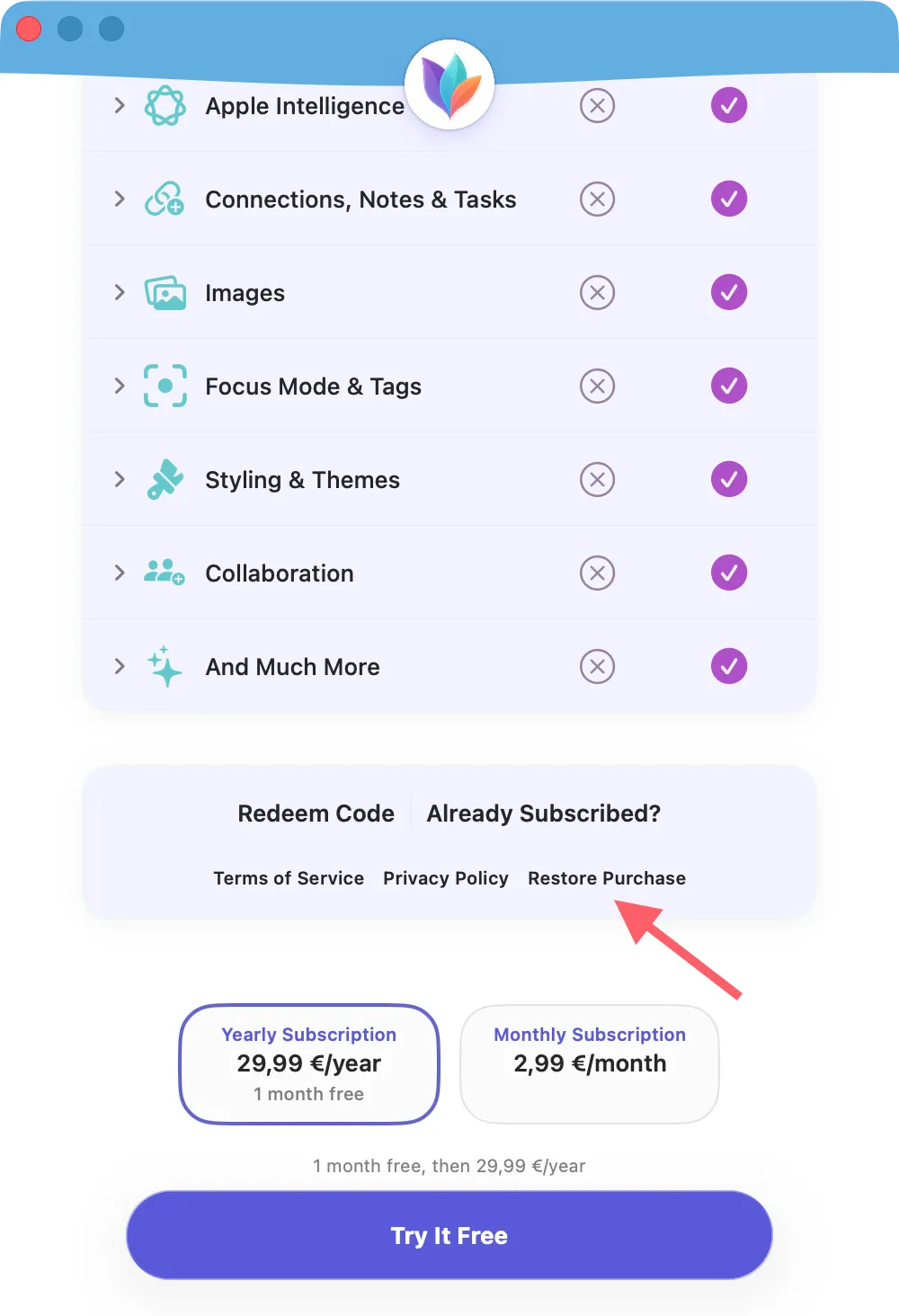
- Open MindNode and navigate to the purchase screen.
- Scroll down and select Restore Purchase.
- If prompted, sign in with the Apple Account you used to make your purchase.
MindNode will check your purchase information and unlock the features included with your purchase or subscription.
Check Your Apple Account
Make sure you're signed in to the same Apple Account you originally used to purchase MindNode.
You can check whether your MindNode Plus subscription is active in your device's Settings under Apple Account > Subscriptions.
If your subscription isn't listed or has expired, visit Apple's subscription support.
Enable iCloud for MindNode
MindNode uses iCloud to sync your subscription across devices signed in to the same Apple Account.
- Open Settings or System Settings on your device.
- Select your Apple Account.
- Go to iCloud > See All under Saved to iCloud.
- Make sure MindNode is enabled.
Using Different Apple Accounts?
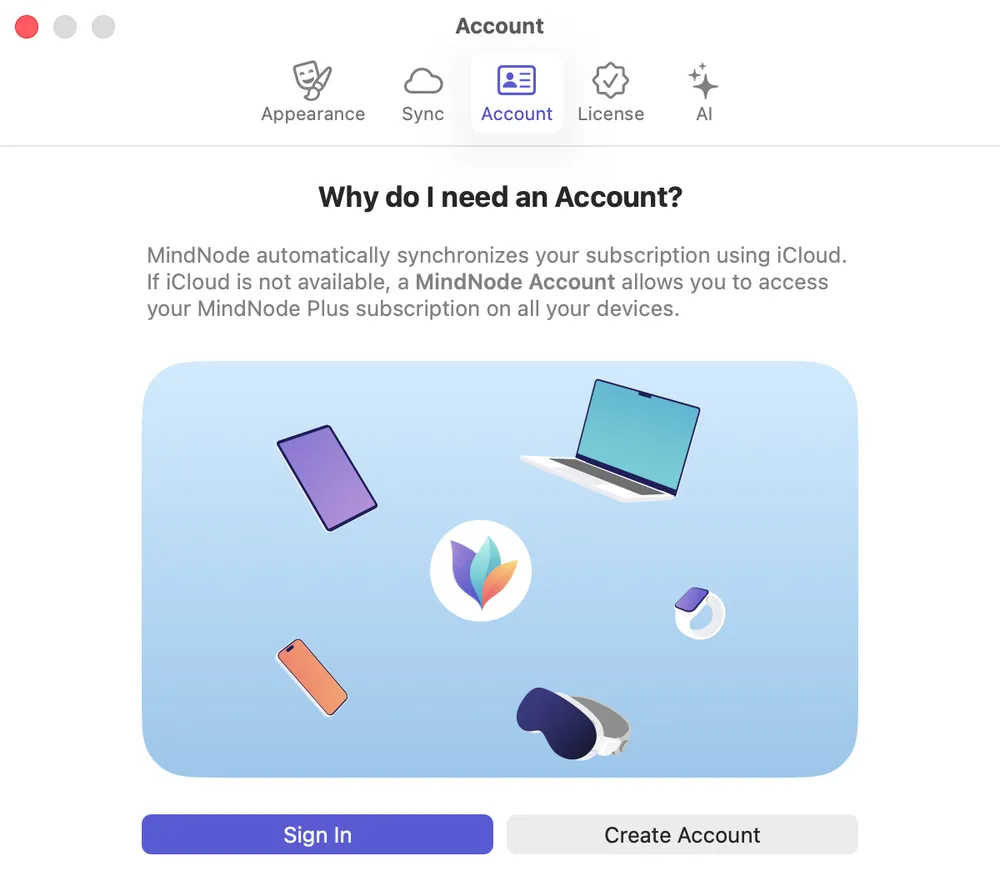
If you use different Apple Accounts across your devices, for example on a personal and work device, you can use a MindNode Account to access your MindNode Plus subscription on all your devices.
- On the device with your active subscription, open MindNode's Settings.
- Go to Account and select Create Account.
- Sign up using Apple or your email address.
- On your other devices, sign in with the same MindNode Account.
Learn more about MindNode Account.
Purchased an Older Version of MindNode?
If you purchased MindNode before we introduced subscriptions in 2020, your original purchase is still valid.
One-time purchases of MindNode 5 or MindNode 6 continue to unlock the features included with your original purchase in MindNode Classic. These purchases don't unlock the new MindNode app or features exclusive to MindNode Plus.
If you're having trouble restoring an older purchase, make sure you're using the same Apple Account you originally purchased MindNode with, then try restoring your purchase in MindNode Classic.
For even older versions, such as MindNode Pro or MindNode 2, you may need to reinstall the original app.
Our MindNode Version History explains which purchases are supported by each version and provides download links for older versions of MindNode.
Still Having Trouble?
If your purchase or subscription is still not recognized, try restarting your device and restoring your purchase again.
If that doesn't help, please contact our support team. Let us know which version of MindNode you're using, which device you're using, and include any error messages you're seeing.
You can also find additional troubleshooting steps in Apple's guide to restoring in-app purchases.