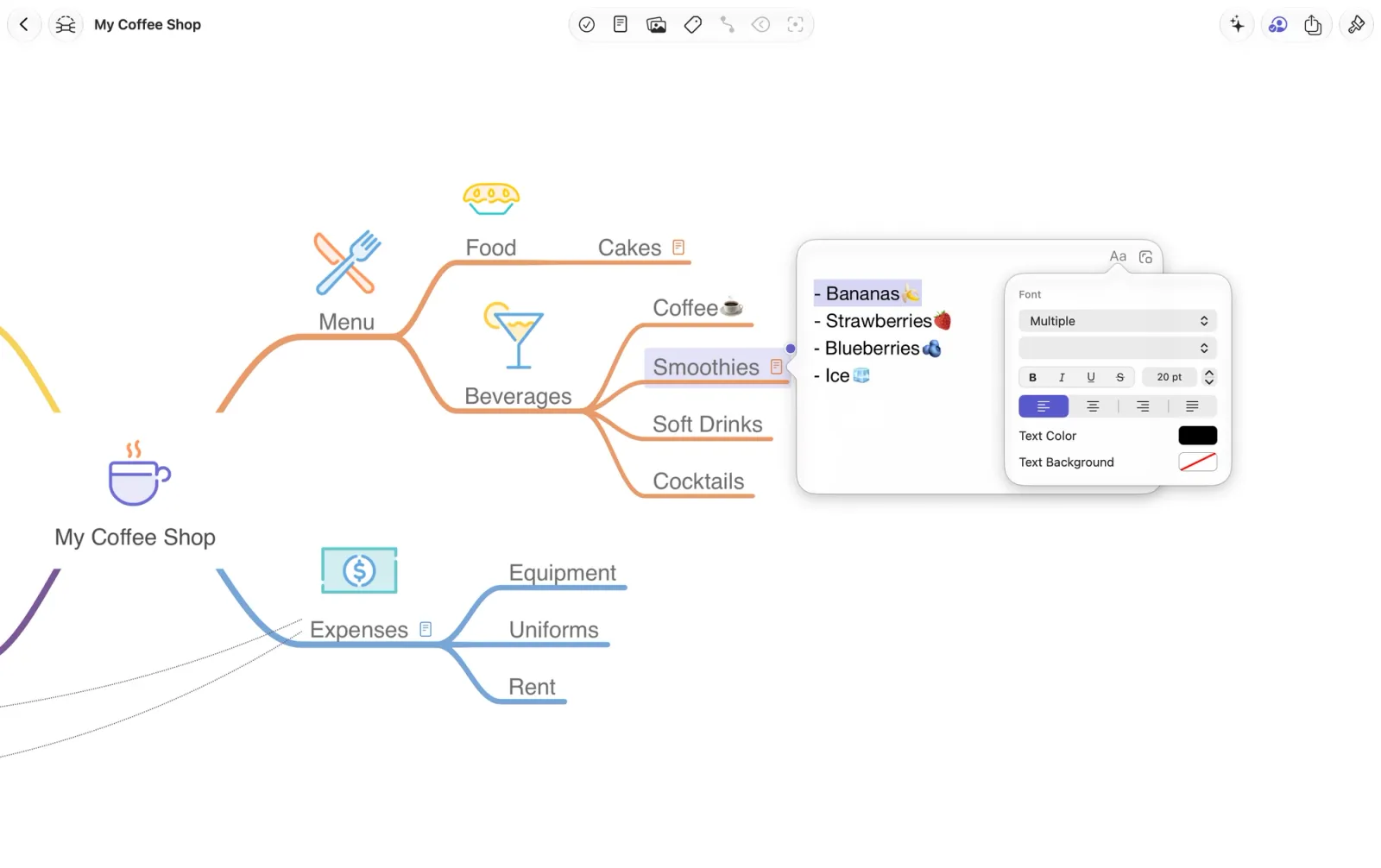
Add notes to any node to keep additional information, ideas, or context close at hand without cluttering your mind map.
Create and Edit Notes
How to Create a Note
- Select a node.
- On Mac, select the Notes button in the toolbar. On iOS and visionOS, select the Notes button in the Action Toolbar.
- Enter your text in the note editor.
- Click or tap outside the note to close it.
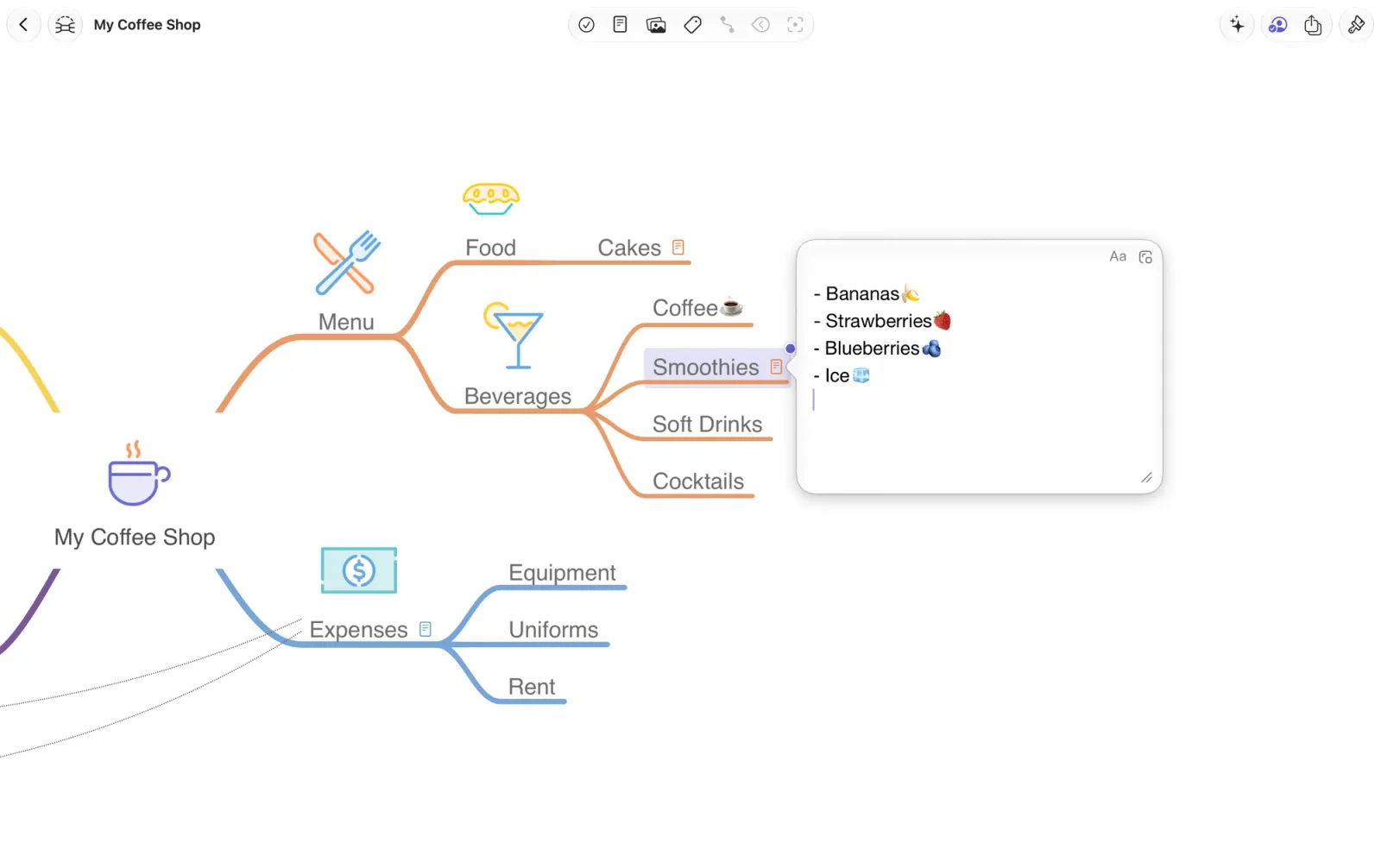
How to Edit Notes
Select the note icon on a node to reopen and edit its notes.
On macOS, formatting controls are located in the upper-right corner of the note editor, where you can customize the font, color, and more. On iOS, these options are available in the context menu.
On macOS, you can also detach a note into a separate, movable window for easier editing.