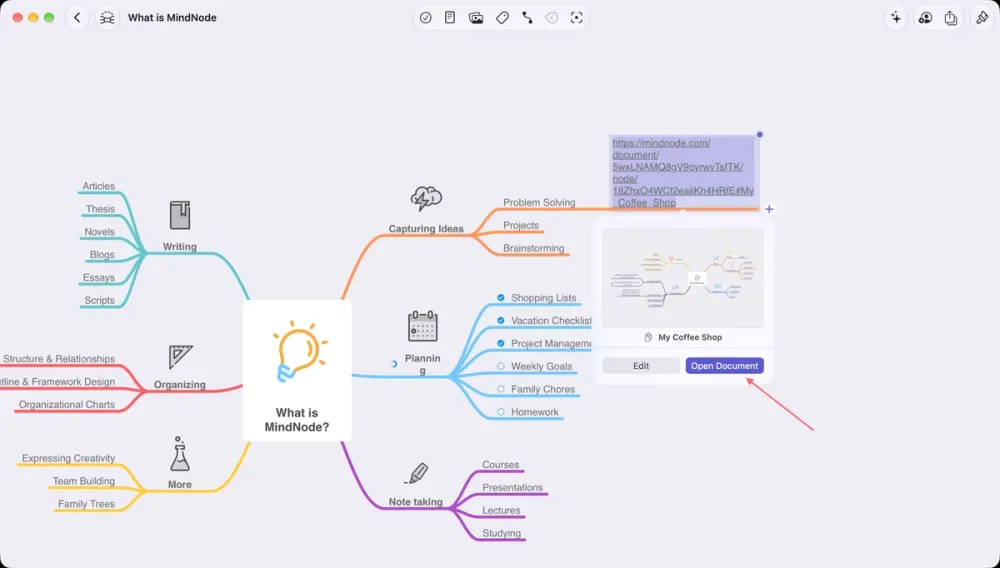
Copy Link to Node lets you create direct links of specific nodes and paste them into other MindNode documents. This makes it easy to connect related thoughts across separate mind maps. When you click the link, MindNode automatically opens the linked document and centers the target node on the canvas, so you can spot it right away.
How to use Copy Link to Node:
- Open the MindNode document containing the node you want to link to.
- Select the target node, open its context menu (right-click) and choose Copy Link to Node.
- Open the MindNode document where you want to insert the link.
- Create a new node or select an existing one, then paste the copied link into the node's text.
Once added, clicking or tapping the link will automatically open the original document and center the linked node on the canvas.
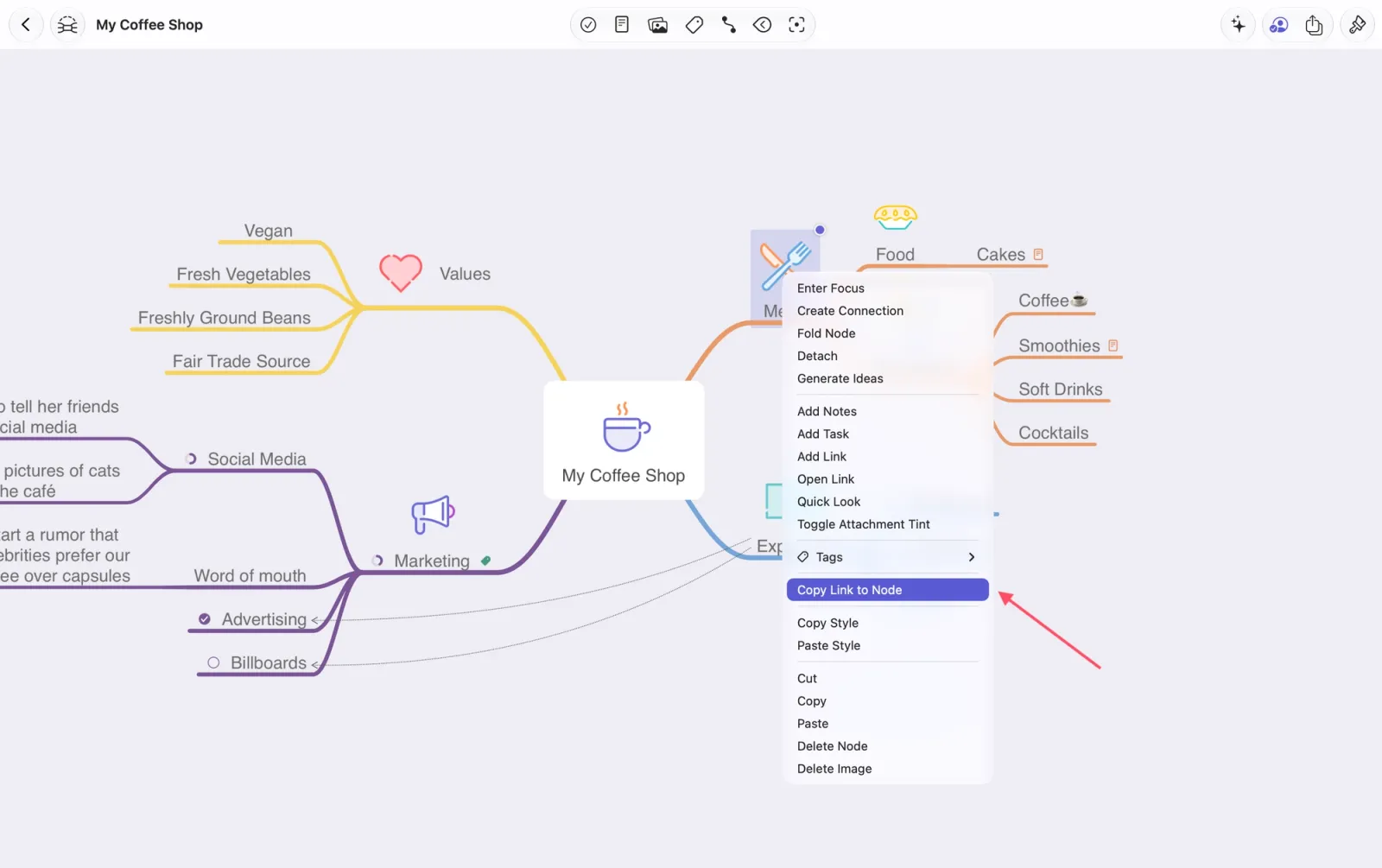
Add the link to your other document:
Next, open the document you want to add the link to. Create a new node or select an existing one, then paste the copied link into the node's text.
By pressing ⌘ + K, you can add a link to a node without displaying the full URL. Note that the node must already contain text for this to work.
Once added, clicking or tapping the node, then “Open Document”, will automatically open the original document, center the linked node on the canvas, and highlight it.