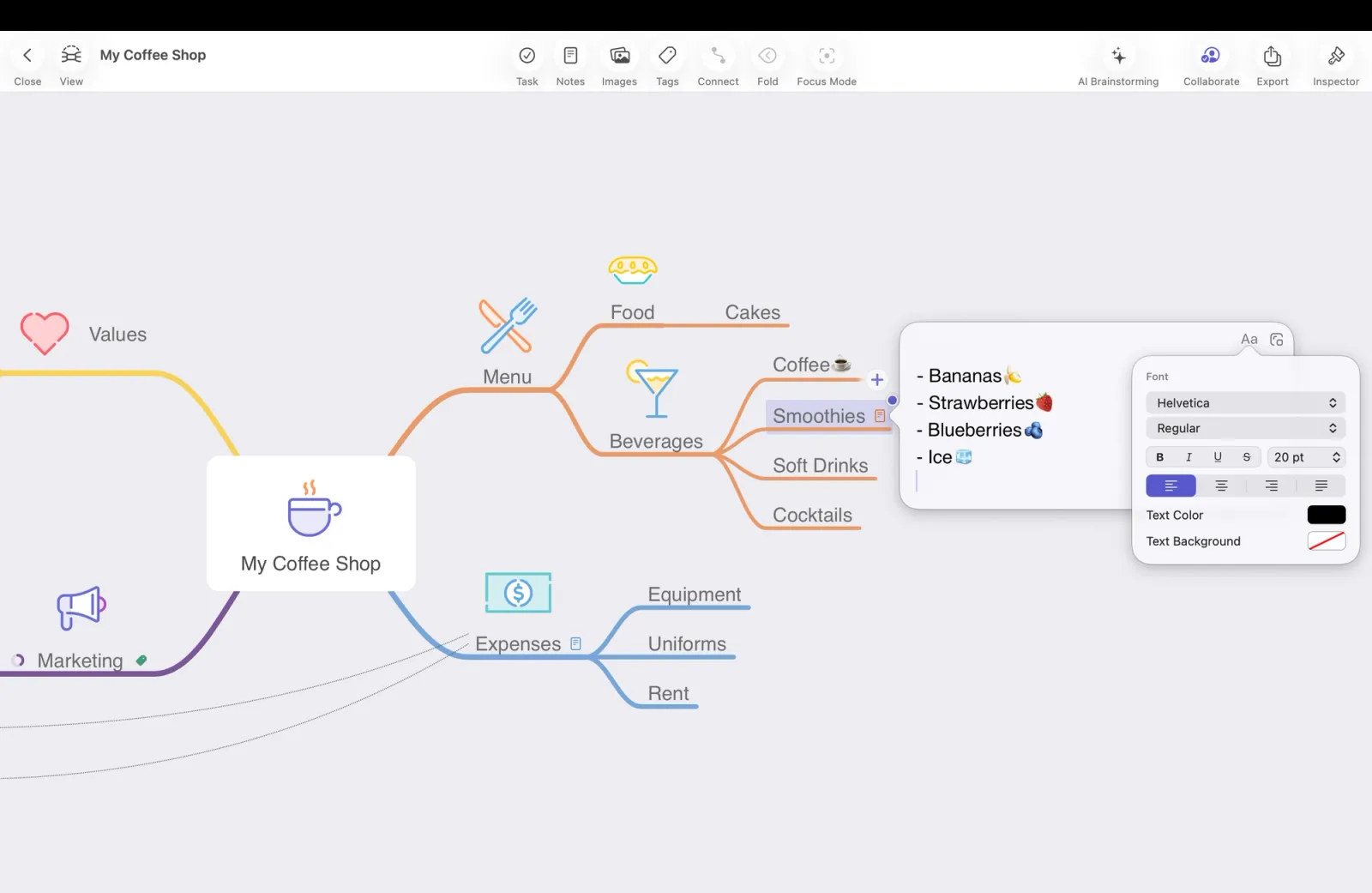
Notes give you a simple way to add extra details to a node that don't need to appear at first glance.
Create & edit Notes
How to create a Note
- Go ahead and select a node.
- Locate the Notes icon in the Action Toolbar and click/tap it.
- A pop-over appear where you can enter your notes.
- Once you're done click the Canvas to confirm.
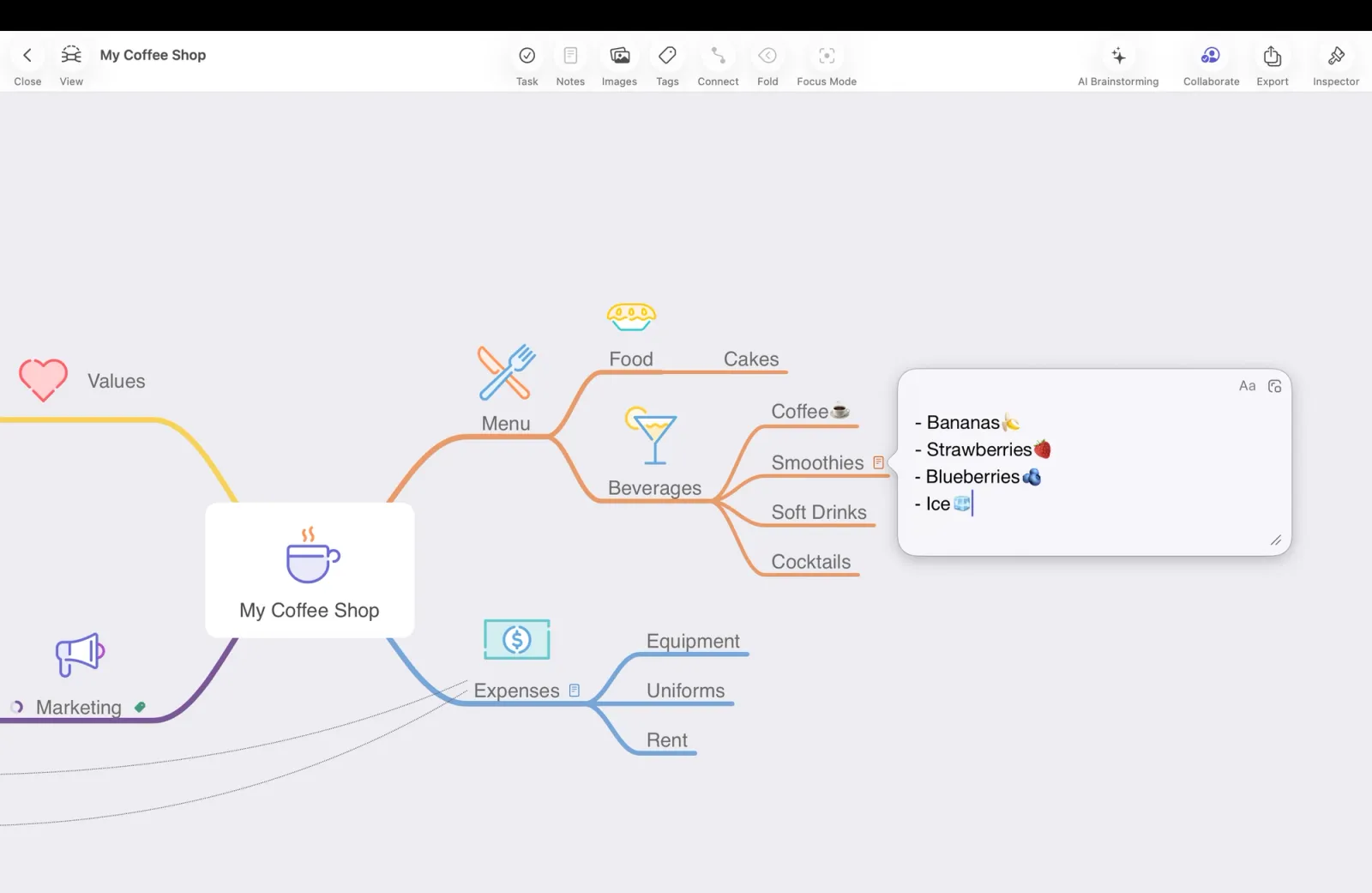
How to edit Notes
Enter your text in the note field. On macOS, the text editing icon is located in the upper-right corner, where you can customize the font, color, and more. On iOS, these options are available in the context menu.
On macOS, the detach icon lets you open the note in a separate, movable window for easier editing. Once you close the note, a small note symbol will appear on your node to indicate that additional content is attached. Tap or click the symbol anytime to reopen the note.